01
Sortable directory tree
Review folders and files by size, item count or path, then expand the hierarchy to understand which subdirectories contribute most to the total.
QDirStat turns complex directory trees into a sortable workspace and visual treemap, helping users identify large files, compare folders and plan safer storage cleanup.
QDirStat is a graphical directory statistics tool that combines a detailed folder tree, file-size sorting, type summaries and a treemap so storage problems can be investigated from one interface.
Instead of reading command-line totals one folder at a time, you can scan a directory, expand its hierarchy and inspect the largest areas visually. This is useful when a home folder, development machine, server mount or archive drive is unexpectedly full.
QDirStat is most useful as an investigation tool. It helps identify candidates for cleanup, but the user still needs to understand what each file belongs to before removing it.
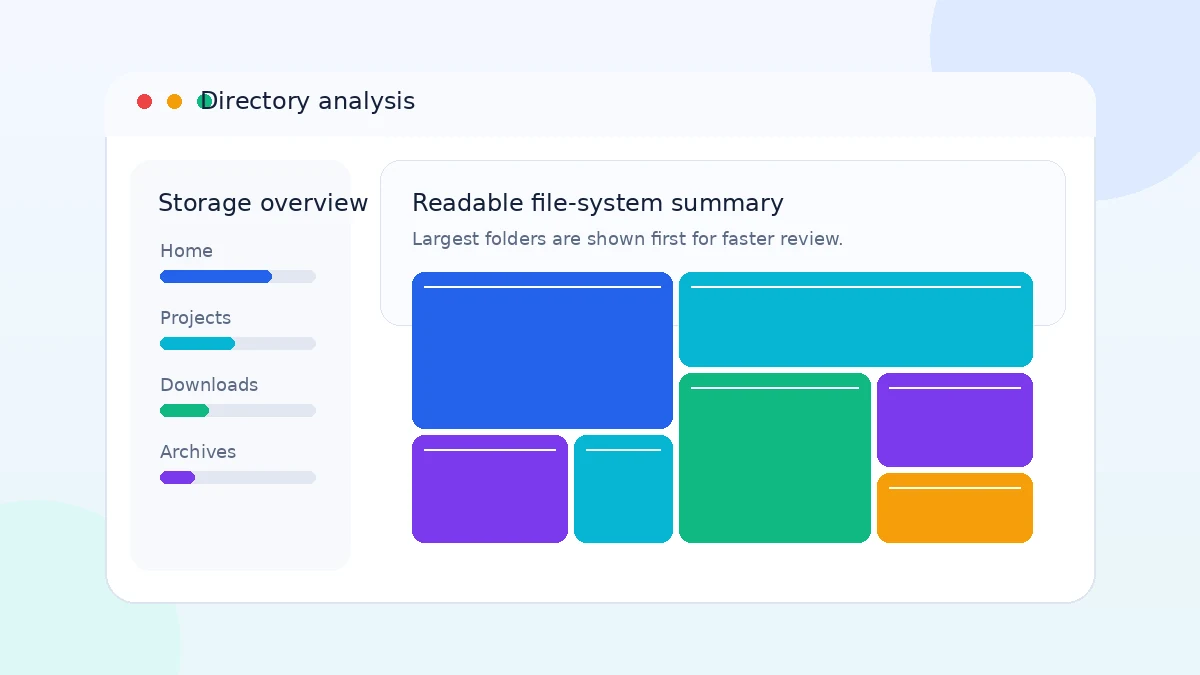
The interface is designed to move from a high-level disk overview to a specific file or directory without losing context.
Review folders and files by size, item count or path, then expand the hierarchy to understand which subdirectories contribute most to the total.
Large blocks immediately reveal storage-heavy files, while color grouping helps identify patterns across extensions and content types.
Compare how much space common extensions consume across the scanned directory.
Configure deliberate commands for recurring maintenance tasks while keeping control in the user’s hands.
Open previously collected directory data without repeating a full live scan.
Inspect readable local drives, removable media and mounted remote paths.
Use a familiar multi-panel layout across many Linux desktop environments.
Build from editable source code when a distribution package is unavailable or outdated.
The application separates scanning, analysis and cleanup so you can review storage information before making any changes.
Choose a directory, mounted filesystem or supported cache file.
QDirStat reads accessible entries and calculates directory totals.
Use sorted columns, type statistics and the treemap to locate large items.
Verify the full path and purpose before applying a cleanup action.
QDirStat is best treated as a Linux and Unix-like desktop utility. Other environments may require additional layers rather than a native one-click setup.
Use the dashboard when you need more detail than a single free-space number can provide.
Find oversized downloads, caches, media folders and forgotten archives before a laptop runs out of space.
Compare build outputs, dependency trees, virtual environments and container data that quietly accumulate over time.
Inspect a mounted data path from a graphical workstation when permissions and network performance allow it.
Identify the largest project folders before moving data to slower storage or creating a backup schedule.
See whether videos, images, logs, package caches or disk images dominate a directory.
Use cache files to review large directory trees without scanning the live filesystem every time.
Use a distribution package where possible. The source ZIP in the download section is intended for users comfortable with build tools and Qt development dependencies.
sudo apt update
sudo apt install qdirstat
sudo dnf install qdirstat
pacman -Ss qdirstat
sudo pacman -S qdirstat
unzip qdirstat-master.zip
cd qdirstat-master
# Read the included build documentation
# Install the required Qt and compiler packages
# Build in a separate directory
qdirstat
Download the provided upstream source-tree ZIP. This is editable source code rather than a one-click installer, so Linux build dependencies may be required.
Download QDirStat
Disk usage tools can reveal important system and application data. Treat every cleanup action as a separate decision from the scan itself.
Confirm the full path, file owner and application purpose. Back up irreplaceable data, prefer application-provided cleanup controls and avoid elevated privileges for routine scans. A large file is not automatically unnecessary.
The tool is strong for detailed Linux storage analysis, but its source-focused and desktop-oriented workflow may not suit every environment.
The download on this page follows the project’s main source branch. Distribution repositories may package a numbered release on their own schedule.
| Current upstream release | Version 2.0 is the latest numbered release identified during this site build. |
|---|---|
| Provided download | Main-branch source ZIP from the upstream repository. |
| Package differences | Ubuntu, Arch and Fedora package versions can differ by distribution release. |
| Recommended update path | Use the same package manager or build method used for the original installation. |
| Verification | Read the archive documentation and inspect the extracted source before building. |
Start with the selected path, permissions and storage type before changing the application or rebuilding from source.
Test a smaller local directory, unmount unnecessary network paths and check whether the storage device is busy or sleeping.
Run as a normal user and scan only readable locations. Use elevated access for a specific protected path, not as a default.
Remember that reserved blocks, snapshots, deleted-open files and metadata may not appear as ordinary directory entries.
Check the terminal output, Qt runtime availability and whether the installed package matches your distribution release.
Continue with focused installation, compatibility, cleanup and troubleshooting articles.
Choose between repository packages and a source build without mixing update methods.
Read installation guide
Move from a treemap block to the exact directory path and verify it before cleanup.
Read large-file guide
Troubleshoot permissions, slow scans, launch errors and unexpected storage totals.
Read troubleshooting guideTwenty focused answers covering installation, compatibility, scanning, safety and common problems.
QDirStat is a graphical disk usage analyzer that scans a directory tree, sorts folders by size and presents storage use through lists and a treemap. It helps you find large files, understand where space is being consumed and plan cleanup work more carefully.
Yes. QDirStat is distributed as open-source software. This site provides an independent guide and a source archive download path; it is not the official project website. Review the included license and source files before building or redistributing the software.
Yes. Linux is the primary environment for QDirStat. It is available through several distribution repositories and can also be built from source when the required Qt and development packages are installed.
QDirStat is not primarily a native Windows utility. Advanced users may experiment through Unix-like layers, containers or remote GUI setups, but that adds complexity. For a straightforward Windows experience, a Windows-native disk usage analyzer is usually easier.
Yes. Ubuntu users can normally install a packaged build from the distribution repository. Package versions may lag behind the newest upstream source, so choose between repository stability and source compilation based on your needs.
Arch users should first check the official repositories. If the desired package or variant is not available there, an AUR workflow may be considered. Always inspect PKGBUILD files and build in a clean environment before installation.
Yes, community-maintained container images can expose QDirStat through a browser or remote desktop layer. You must map only the directories you intend to inspect and choose read-only mounts when deletion or modification is not required.
The treemap represents files and directories as colored rectangles. Larger rectangles use more storage. Color grouping can help distinguish file types, while selecting a block lets you connect the visual area with its location in the directory tree.
Yes, provided the drive is mounted and your user account has permission to read it. For removable or network storage, scanning speed depends on the connection, file count and filesystem response time.
No. Scanning is separate from cleanup. Deletion or cleanup actions require a deliberate user command. Review the selected path, confirm backups and avoid running with elevated privileges unless a protected directory genuinely needs inspection.
A scan can slow down on directories with many small files, network mounts, permission errors or sleeping disks. Wait for active storage to respond, exclude unnecessary mount points and test a smaller directory to separate a performance issue from a permissions problem.
Missing folders usually indicate insufficient permissions, an unmounted path, an excluded filesystem or a scan started from a narrower directory. Check the selected root and read permissions before repeating the scan.
QDirStat totals visible files it can read, while filesystem tools can include reserved blocks, deleted-but-open files, metadata, snapshots and other allocation details. The figures answer different questions, so a difference does not automatically indicate an error.
Start with the smallest relevant directory, avoid slow network paths, close heavy disk workloads and use cache files for repeat analysis where appropriate. Scanning as a regular user also avoids traversing protected areas you may not need.
Cache files store a previously collected directory tree so QDirStat can reopen the analysis without reading every file again. They are useful for remote systems, scheduled scans or large trees that change slowly.
Root access provides broad visibility but also increases the consequences of a cleanup mistake. Prefer a normal account. Use elevated access only for a specific protected path, and avoid configuring destructive cleanup actions during a privileged session.
The mount may use permissions, access control lists, container restrictions or network credentials that block your account. Confirm the mount is active, then test read access from the shell before troubleshooting QDirStat itself.
Use QDirStat for identification first. Verify the full path, understand the owning application, back up irreplaceable data and remove files through the application when it manages its own database or cache. Never delete a large item only because it appears at the top.
It can analyze remote storage that is mounted as a readable filesystem, but performance may be limited by latency and file count. A cache generated close to the data can be more efficient than repeatedly scanning over a slow connection.
Extract the archive, read the project documentation, install the stated build dependencies and compile it in a user-owned working directory. The provided ZIP is source code, not a one-click Windows installer, so a development toolchain may be required.